About Monkey 2 › Forums › Monkey 2 Programming Help › Mask shader alpha/blending issue
This topic contains 2 replies, has 2 voices, and was last updated by  Mark Sibly
 1 year, 4 months ago.
-
AuthorPosts
-
November 30, 2017 at 1:07 pm #12036
Hi,
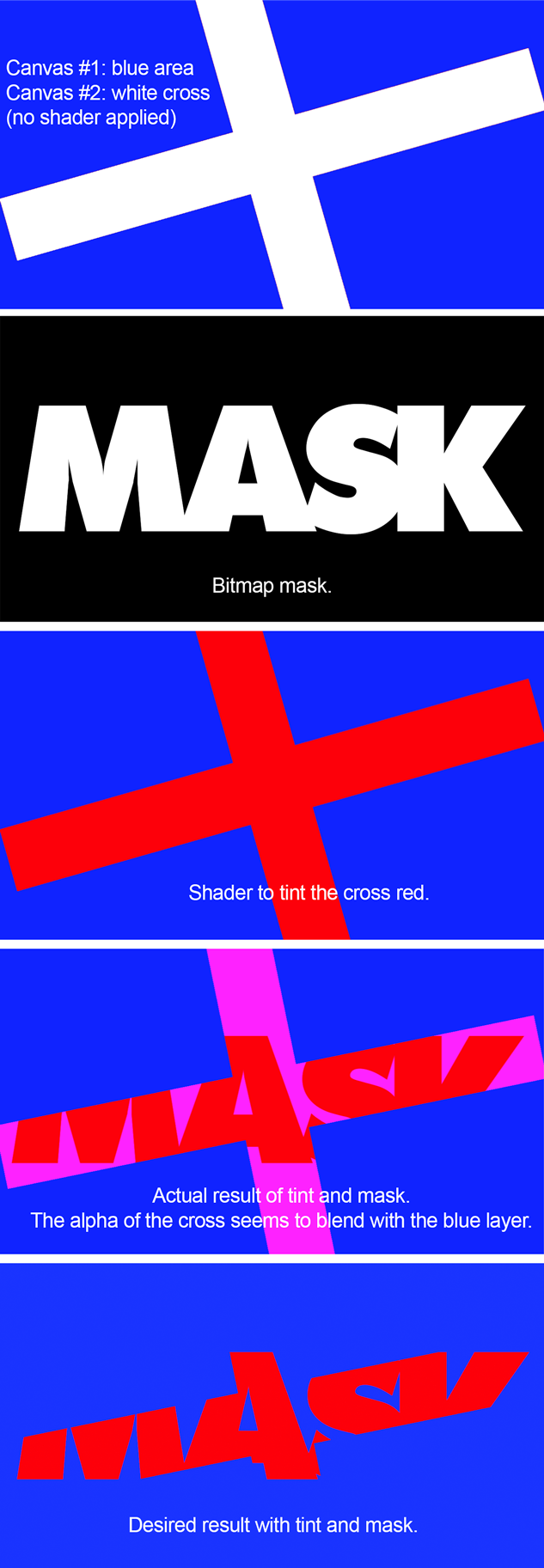
I’m working on a shader that is a mask for a canvas but also allows me to tint that canvas. So in total I have two canvases, one just in plain blue colour, one with a simple cross shape in white that is rotating (I’m masking this one).
Applying a glsl shader is working quite well. I can move the mask independently of the canvas content, etc. Now there’s just one odd behaviour that I can’t quite understand. In the shader I have this (just focusing on the fragment part here):
C++1234567891011121314151617uniform vec2 m_Resolution;uniform sampler2D m_ImageTexture0;uniform sampler2D m_MaskTexture;uniform vec4 m_HighlightColor;uniform vec2 m_Offset;void main(){#if MX2_RENDERPASS==0vec2 maskCoord = v_TexCoord0 - m_Offset / m_Resolution;vec4 maskColor = texture2D( m_MaskTexture, maskCoord );vec4 imageColor = texture2D( m_ImageTexture0, v_TexCoord0 );gl_FragColor.rgba = imageColor.rgba * m_HighlightColor.rgba;gl_FragColor.a *= ( maskColor.r + maskColor.g + maskColor.b ) / 3.0;#endif}Where I set the alpha value of the mask in the end, so …
Monkey1gl_FragColor.a *= ( maskColor.r + maskColor.g + maskColor.b ) / 3.0;… I’d expect that this simply sets the canvas to alpha 0 where the bitmap mask texture has a black pixel and to 1 (or rather keeps it unchanged) where it is white. However, the result blends the red tint of the shader with the blue canvas behind and results in a magenta area.
Below is an image that hopefully clarifies what I mean. (Click on it, it’s a series of images.)
I don’t really think this blending comes from the shader but I suspect it happens somewhere outside in Monkey2. Maybe it has something to do with premultiplied alpha, but I have no idea where exactly or how to avoid it.
If premultiplied alpha is the issue at all, I’m using a pixmap for the canvas that I apply the mask to, but I don’t know how to change premultiplied alpha here: https://github.com/anatolbogun/monkey2-tests/blob/develop/src/masked_image.monkey2#L74
Monkey1Local pixmap := New Pixmap( width, height, PixelFormat.RGBA8 )The entire “Moving Mask” test is on Github with Main at https://github.com/anatolbogun/monkey2-tests/blob/develop/demos/glsl_mask_demo/moving-mask.monkey2 , but it’s pretty much work in progress.
If anyone could shed some light on this mystery that’d be much appreciated.
Attachments:
November 30, 2017 at 2:34 pm #12040Oh, never mind. I got it! Mark once linked to this post about premultiplied alpha, and that had the clue I needed:
——————–
blend(source, dest) = source.rgb + (dest.rgb * (1 – source.a))
…
In this world, RGB and alpha are linked. To make an object transparent you must reduce both its RGB (to contribute less color) and also its alpha (to obscure less of whatever is behind it). Fully transparent objects no longer have any RGB color, so there is only one value that represents 100% transparency (RGB and alpha all zero).
…
To use premultiplied alpha, in addition to setting the appropriate renderstates, you must also convert your source graphics into premultiplied format. Drawing a non premultiplied color with premultiplied blending will not give sensible results!
To convert a non premultiplied color into premultiplied format:
color.rgb *= color.a
——————–
And that was the only thing that was missing. I needed to multiply the alpha value with rgb as well. So the fix in the glsl shader is:
C++1gl_FragColor.rgba *= ( maskColor.r + maskColor.g + maskColor.b ) / 3.0;instead of just
C++1gl_FragColor.a *= ( maskColor.r + maskColor.g + maskColor.b ) / 3.0;November 30, 2017 at 7:23 pm #12041My work here is done…
-
AuthorPosts

You must be logged in to reply to this topic.