Forum Replies Created
-
AuthorPosts
-
minor, but super useful addition:
Menu bar extended to be a button/tool bar!!!!
Next up will be to integrate a new find…
Attachments:
Here’s the basic definition:
_docker.AddView( _menuBar, “top”, 40, false )
_menuBar would be your view/component. in your case _inputTextView
It being located at the “top” with a height of 40 (or width if it was at the left/right)
the last parameter is “use click/drag separator” in this case it is false, so it won’t be able to be resized.
Your code:
_docker.AddView( _inputTextView, “top”, 0 ) <– 0 will give it a height of 0, make it 100 and see what happens
the line
_docker.AddView( _outputTextView, “bottom”, 400 )
would place a window/component with a height of 400 and a draggle size, I think what you really wanted was 2 windows with a single sizeable separator.
So what you want is this version
_docker.ContentView = _outputTextView
Where the remaining space (ContentView) is taken up by a component.
Next…

Extended the code view to include lambdas as well as reverse lookup for their callers
the code view options are now saved to the config file, so it remembers when you next start it
Minor fixes to multi-line tab indent/undent
view/hide console added to panel menu, plus activate on ctrl/cmd + esc and not esc (which i thought was always a bit dumb as the console kept appearing and disappearing when escaping out of dialogs)
console auto hides when not viewing text. so it hides when viewing an image and reappears when viewing code.
Attachments:
finished and it all works!
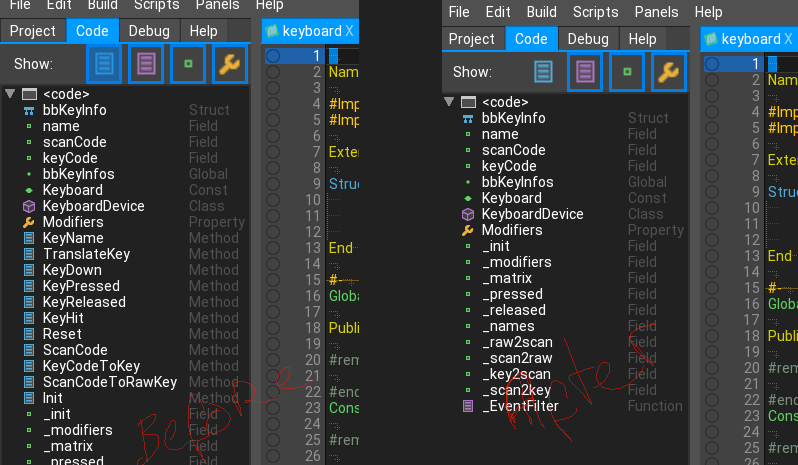
Basically code view is fully functioning, with 4 options to show/hide methods, functions, properties and fields
Here is a quick (double) shot of it in operation with the modules/mojo/input/keyboard.monkey file
On the left is the code view showing everything, and on the right with methods hidden.
You can also see the icons with their grey text and if you look at the actual code itself you can just see the new matching colors.
If you look very closely at line 1 in both shots you can just see new current line highlighting. This is similar to the way visual studio displays the current line with a darker background with lighter top and bottom border
Attachments:
why not just post the url as it should be?
nope, nothing on github yet. I’m still trying to get it all functioning on that side.
Code folding not currently on the list due to complexity implementing it. maybe later though?
OK. Small update image icons now in the code view and clickable. I’ve also added some grey text to the code view so there is both a visible and text information about each entry. The grey text is right aligned but will slide if there is not enough room. You can see this in the scanCodeToRawKey entry near the bottom.
entries are currently not hidden, but i’m getting there ;0
Attachments:
Yep I would have thought small.
Good news is the code browser is now fully functioning and tracks as you type – wasn’t quite as simple as I first thought.
tab indenting or blocks and un-indenting is also now supported
I’ve also added #- which adds a horizontal line to the editor. it is ignored by the compiler, so doesn’t do anything apart from add a visual cue to the editor
Also I’ve added extra color highlighting for keywords which the code editor uses (Method, Property, Filed, Class etc) These are coloured in the color the code view and property view uses – again tying everything together
Attachments:
well 21 cause it’s ted2+1, but maybe it’s ted all grown up?
yep I’de thought of indenting, but i’m concentrating on getting the basics all functioning first. Indenting needs tracking of keywords
Visible Newline added and tab tweeted a bit
space not supported
best news is that the initial code jumping is functional. It works and will always jump so the line is shown onscreen and not the bottom line of text.
Here you can see the entire editor with the tabs and new line being shown plus the code view and a field jumped to.
The code view shows everything sequential as they appear in the code. I am working on hiding and showing (vars, properties, functions, etc) so you get a clean overview of the way you want to look at code.
You can also see the new status bar. showing its default state. This changes color and shows debugging, compiling information (no dialogs)
You can also see the debug icons next to the line numbers. just click to activate a debugstop
Attachments:
Flash is dead
a sprite sheet is really just an image with some form of subimage reference system
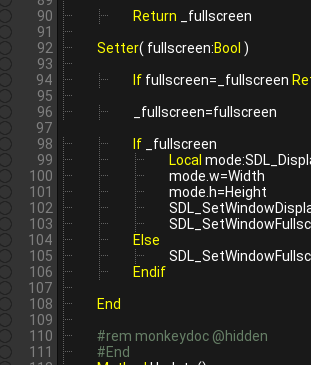
Just been using ted21 for real and not just testing. One thing is the next ‘show tabs’ as a glyph is amazing.
I have been using Mollusk to code the monkey2 files and knew there was something screws going on with the tabs, but loading the edited file now shows exactly where tabs are missing and allows me to correct them.
It also (to me) makes code infinitely readable, with everything lining up with the tabs correctly. it makes checking starts and ends of code very easy and also helps see if your code is not conforming and possible has an underlying (missing end, etc) error.
Here is the code being worked on with the corrected code on the top (with the tabs) and the ‘wrong’ code below it:
Attachments:
hiding thing is the easy bit – making them do it in the first place is the hard thing
Just got the initial code for ‘code description’ finished. When integrated it will show all the base parts of any opened code (functions, method, classes, fields, etc) and allow direct jumping to the line when clicked.
One thing I haven’t seen other editors do is also highlight where about you are in the code (in the code description) as you move around. So you should always have a solid reminder of where you are in the code at any time.
All of the code graphics already exist from the help system view. so everything will bee seamless.
Attachments:
hiding thing is the easy bit – making them do it in the first place is the hard thing
Just got the initial code for ‘code description’ finished. When integrated it will show all the base parts of any opened code (functions, method, classes, fields, etc) and allow direct jumping to the line when clicked.
One thing I haven’t seen other editors do is also highlight where about you are in the code (in the code description) as you move around. So you should always have a solid reminder of where you are in the code at any time.
All of the code graphics already exist from the help system view. so everything will bee seamless.
Attachments:
Latest stuff. Ctrl left right, etc all added
Working with Mollusk give some unpredictable issues with tabs, so I decided to add visual tabs to the views. After some bartering with finding the correct bits, it’s all working, but…
The interesting thing with visually showing the tabs is how it gives a clearer picture of the code structure:
Attachments:
Great idea, but I’ve no idea how to get a git pull or fork, etc. I’ve got GitKraken installed, but not got much further than that ;[
-
AuthorPosts