Forum Replies Created
-
AuthorPosts
-
There is no.
Mark recently closed the issue https://github.com/blitz-research/monkey2/issues/136
don’t know why.
Some notes :
- usually pool object provides constructor with capacity parameter to be able to create needed size at startup
- PurgeAvailable() – I never saw purge word in development, maybe classic Clear would be better
- 2 linked lists under the hood (not good) – they will produce small allocations/deallocations for each add/remove operations that can be annoying for GC. I don’t know the best approach for optimizing that. For example, Pyro framework has ObjectPool class that uses 2 resizable arrays. They not so good when resizing occured but if you fill pool at startup it give better results – because there is no allocations/deallocations.
I thought all what is inside onrender object was send automatic to the rendertarget.
Now i´m a little bit confused.
RequestRender – it’s just Request, not actually *Do*Render.
So you just ask app to call window.OnRender (all windows if there few) when next step of game loop occured.
I thought in onupdate i handle some things i.e. keyboard input and so on.
And then in onrender all inside that object was send to the render target via RequestRender.There is no OnUpdate but it’s easy to split OnRender to Update and Render
Monkey12345678910111213141516Method OnRender( canvas:Canvas ) OverrideUpdate()Render( canvas )RequestRender() ' ask app to render next frame to have infinite rendering (each step of game loop)EndPrivate ' or protected or publicMethod Update()' perform all updatesEndMethod Render( canvas:Canvas )' perform all rendering operations hereEndPlease paste your code here and describe where do you have problems.
July 23, 2018 at 3:48 pm in reply to: Error : Value of type 'pyro.framework.screenmanager.ScreenManager' has no member #15121If you open monkey2/modules/pyro-framework/screenmanager.monkey2 you’ll see that there is really no such method.

Did you see that?
http://monkeycoder.co.nz/forums/topic/pyro-pyro-editor-for-monkey2-progress-report/page/6/#post-7786Otherwise if you want to test the default peek string method you would see some problems
Even if you use buffer.WriteString() ?
What is onupdate in your case?
You can have timer with 120fps rate but call render each second ‘frame’, for example.
In timer func:
If counter mod 2=1 App.RequestRender()
counter+=1
In that case you have twice more updates than renders.
but all code that comes after App.RequestRender() would be render on the next App.RequestRender().
No, in current frame. There could be another Game template that hides such kind of stuff..
what timer commands can i use?
Timer for 50fps:
New Timer( 50,Lambda()
‘ your code here
End )
I improve ted2go from time t time.
Latest monkey2 version has version with local members in completion list – big improvement.
But there also were some serious bugs related to new stuff.
And good news – I fixed few of them today and push into dev branch.
- better parsing – it parse main files of current changed docs
- better completion – it also looking at main file of current doc to grab their imports
Need testing.
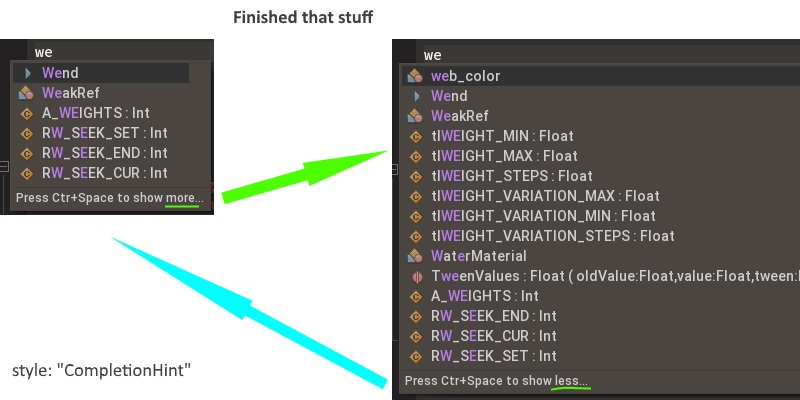
And show more/less stuff should works fine now.
Attachments:
Simple gui app for setuping environment would be nice, it could fix some paths automatically looking at file system.
And also be External tool for IDE.
Pseudocode for desktop:
Monkey123456789101112131415161718clickOnEnterName {App.KeyEventFilter+=NameEventFilter}doneEnterName {App.KeyEventFilter-=NameEventFilter}Method NameEventFilter( event:KeyEvent )if event.Text then playerName += event.TextEndWhat is OOB function is?
Usual str to float is:
Monkey12Local f:=Float( "3.14" )Print "f: "+fNice request, will add jump position for errors.
And we can find previous position by usual Jump back action.
Better place for this is in Projects section, imo.
Features added since latest announcement:
- Added “Code folding” feature;
- Added “Remove lines trailing” feature (enabled by default);
- Fixed a few bugs crashing app;
- Project view:
- dragging mode – added autoscroll nearest the edges and autoexpand folders by hover them about 1 sec;
- added “Collapse all” action for folders (now you can collapse project folder and all its sub-folder by a single click);
- added “Copy path” action to copy path of file / folder into clipboard.
- Added “Open on Desktop” action into right-click on docs tab;
- New feature in editor – Line spacing interval, set it in Preferences;
- Added ~r processing in Console view to print on the same line;
- New feature – “Recently viewed files” dialog (Ctrl+E). Just start typing and press enter on desired item.
-
AuthorPosts